Return To Top
Solution

Prove Self-Serve (L2)

Prove Self-Serve (aka L2) is a delivery channel that advances Prove’s overall mission to become the identity layer of the internet. ProveSS enables developers with the ability to self-onboard and subscribe to paid membership plans that offer Prove’s identity verification and authentication products within a Prove-hosted and Prove-branded consumer facing iFrame. (Think: “Plaid for identity”). To support this, we’ve created a developer self-service portal where clients can self-onboard, integrate via webhooks, track success metrics, add & edit billing information, as well as access new identity verification & authentication capabilities that become available.

Coverage:
Genevieve Castelline

Genevieve Castelline

Slack : gesse

Prove Consumer Marketing Solution Overview

Read the Document


Prove Self-Serve (L2) Solutions

Stay tuned! Overview coming soon!

S1 – Developer Client View - Self-Service Portal

Developers of small businesses and startups desire a turnkey implementation and integration with our existing APIs. With Prove’s Self-Serve developer portal, clients can onboard, agree to Prove Terms & Conditions (non-negotiated contracts), and go-live with our solutions via a webhooks integration in 30 minutes.

Web App

Status: Early Adopter
Solution & Use Case FAQ
Developer Portal Flow screen 1
1

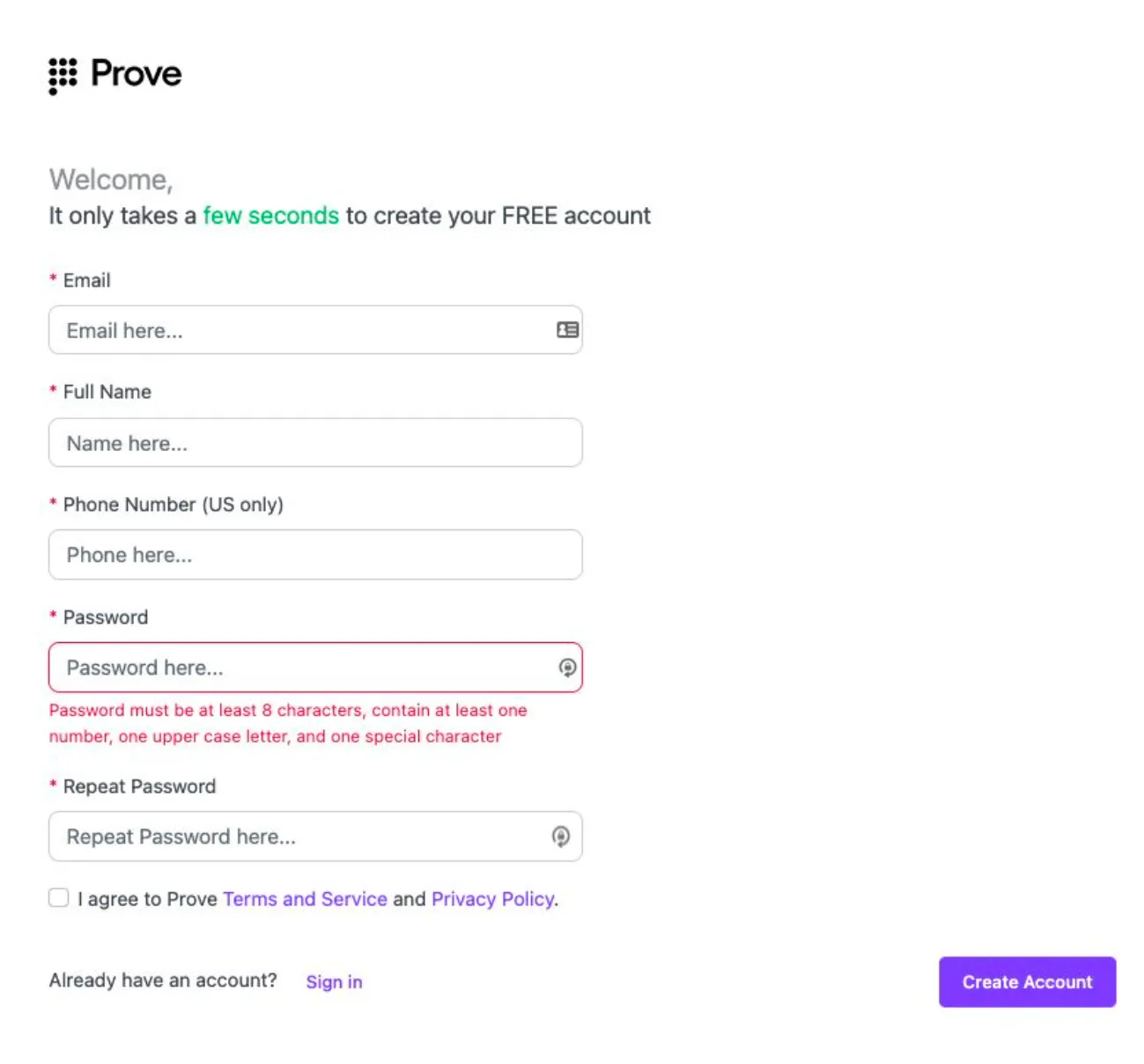
Developer creates an account and agrees to Prove Terms & Conditions (aka, non-negotiated contracts).

Developer Portal Flow screen 2
2

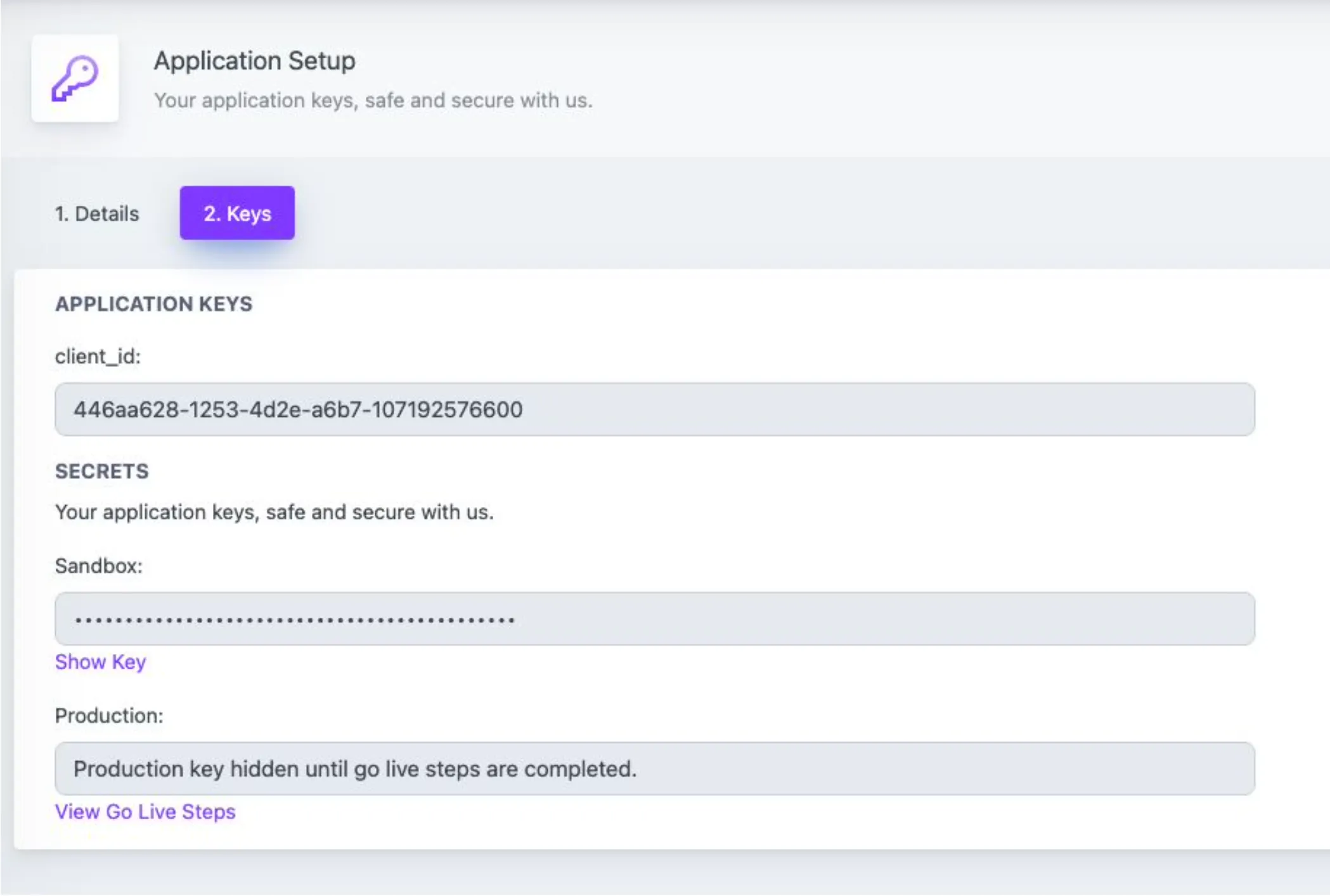
Developer provides credit card details to purchase the solution and gain access to API keys

Developer Portal Flow screen 3
3

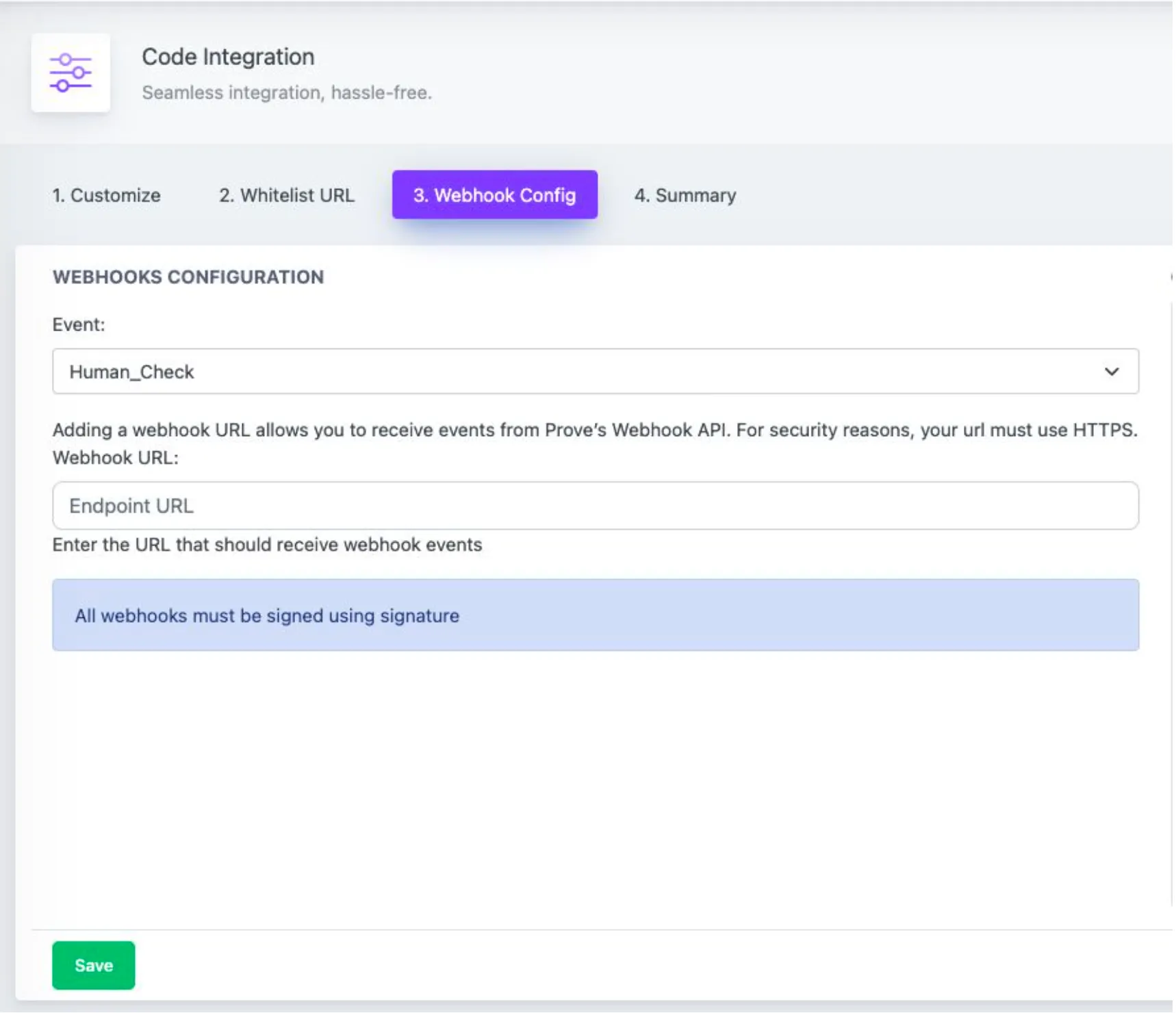
Developer integrates the solution via webhooks integration

Developer Portal Flow screen 4
4

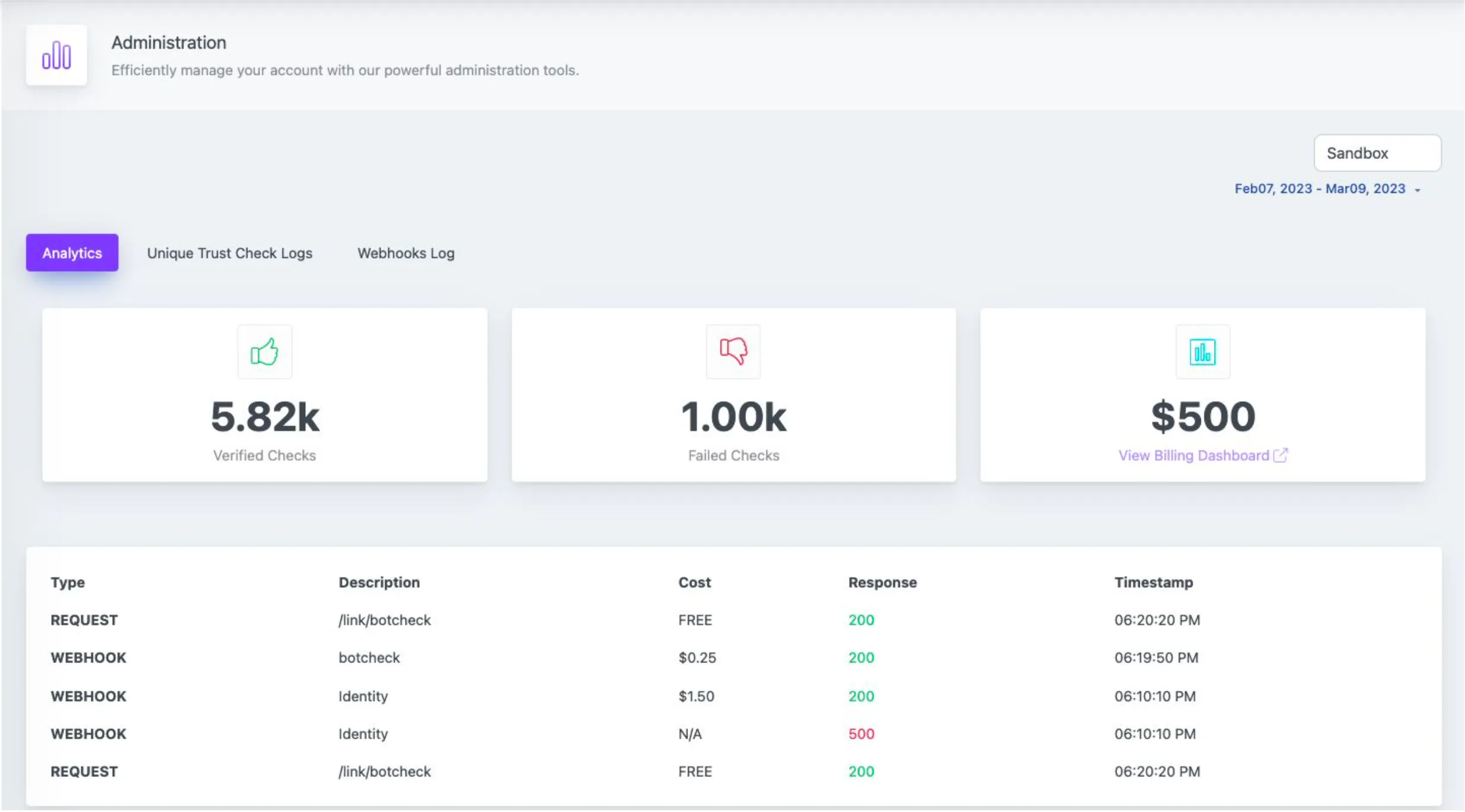
Developer tracks success metrics with the analytics dashboard

Download The Full CX Flow

Prev
Next

S2 – Prove Admin View - Prove Admin Portal

Prove administrators can track, service, and manage beta client developers, all within one centralized application. (For post-MVP, migrating to Salesforce will be a requirement).

Web App

Status: Early Adopter
Status: Alpha
Solution & Use Case FAQKYC Compliant FAQsStandard Configuration
Developer Portal Flow screen 1
1

Developer creates an account and agrees to Prove Terms & Conditions (aka, non-negotiated contracts).

Developer Portal Flow screen 2
2

Developer provides credit card details to purchase the solution and gain access to API keys

Developer Portal Flow screen 3
3

Developer integrates the solution via webhooks integration

Developer Portal Flow screen 4
4

Developer tracks success metrics with the analytics dashboard

Download The Full CX Flow

Prev
Next

S3 – End User View - Unique Trust Check

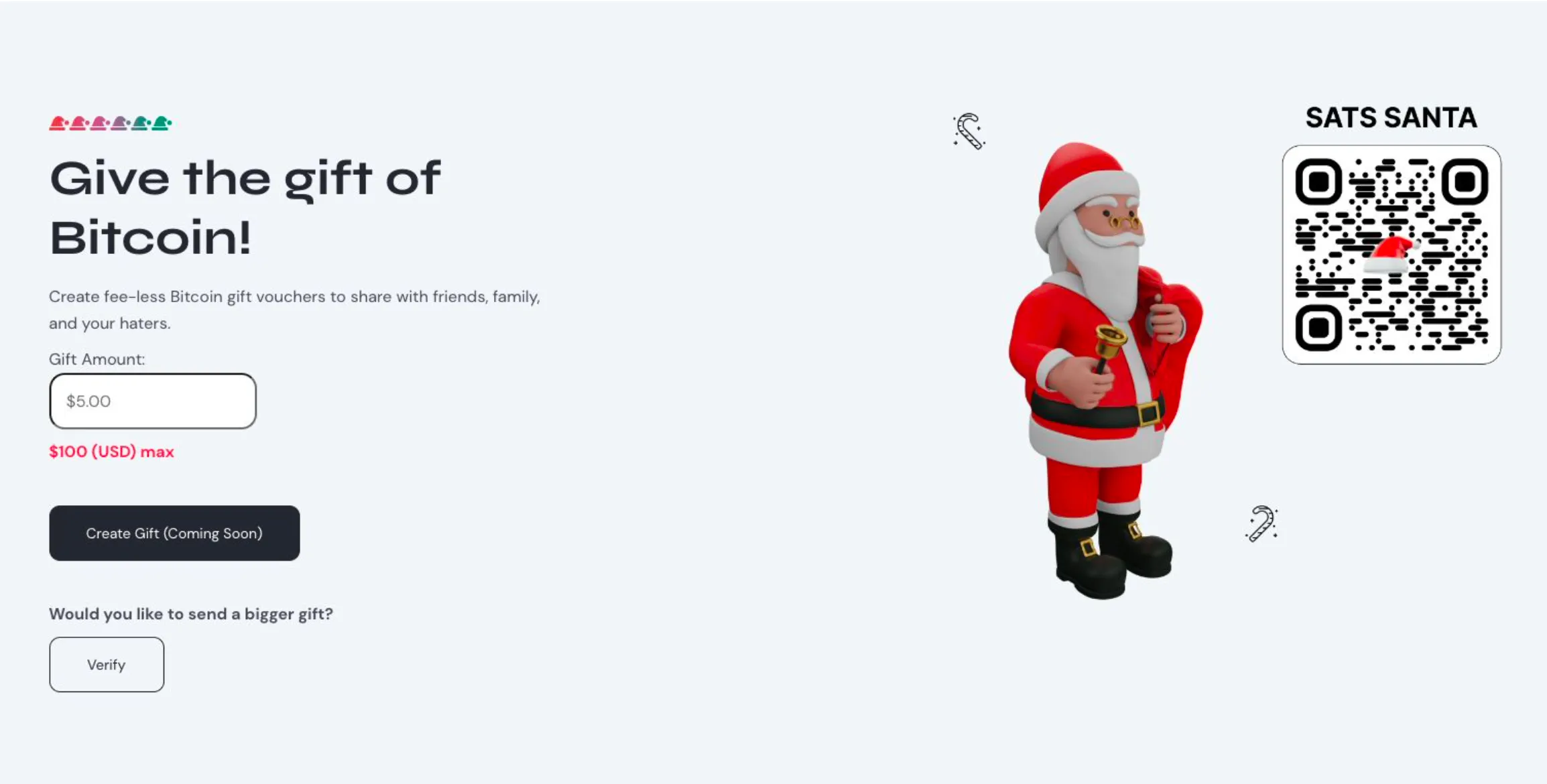
End users of client websites and applications verify that they are a unique and trustworthy user through a Prove-hosted widget embedded within the client’s onboarding flow.
Web & Mobile App

Status: Early Adopter
Solution & Use Case FAQ
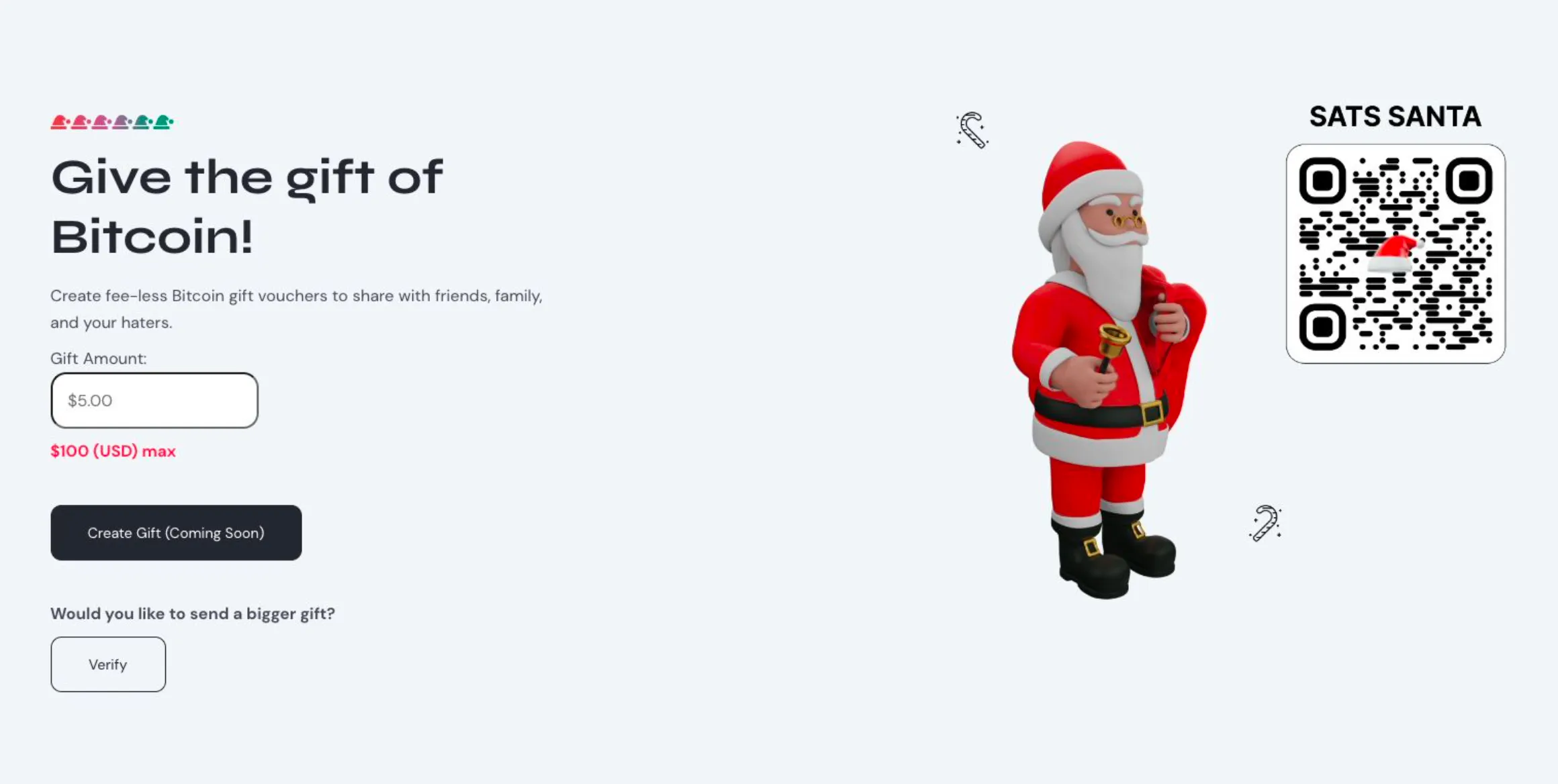
End User Widget Flow - Unique Trust Check screen 1
1

End user clicks “verify” to initiate the flow from within the client/developer’s webpage/app

End User Widget Flow - Unique Trust Check screen 2
2

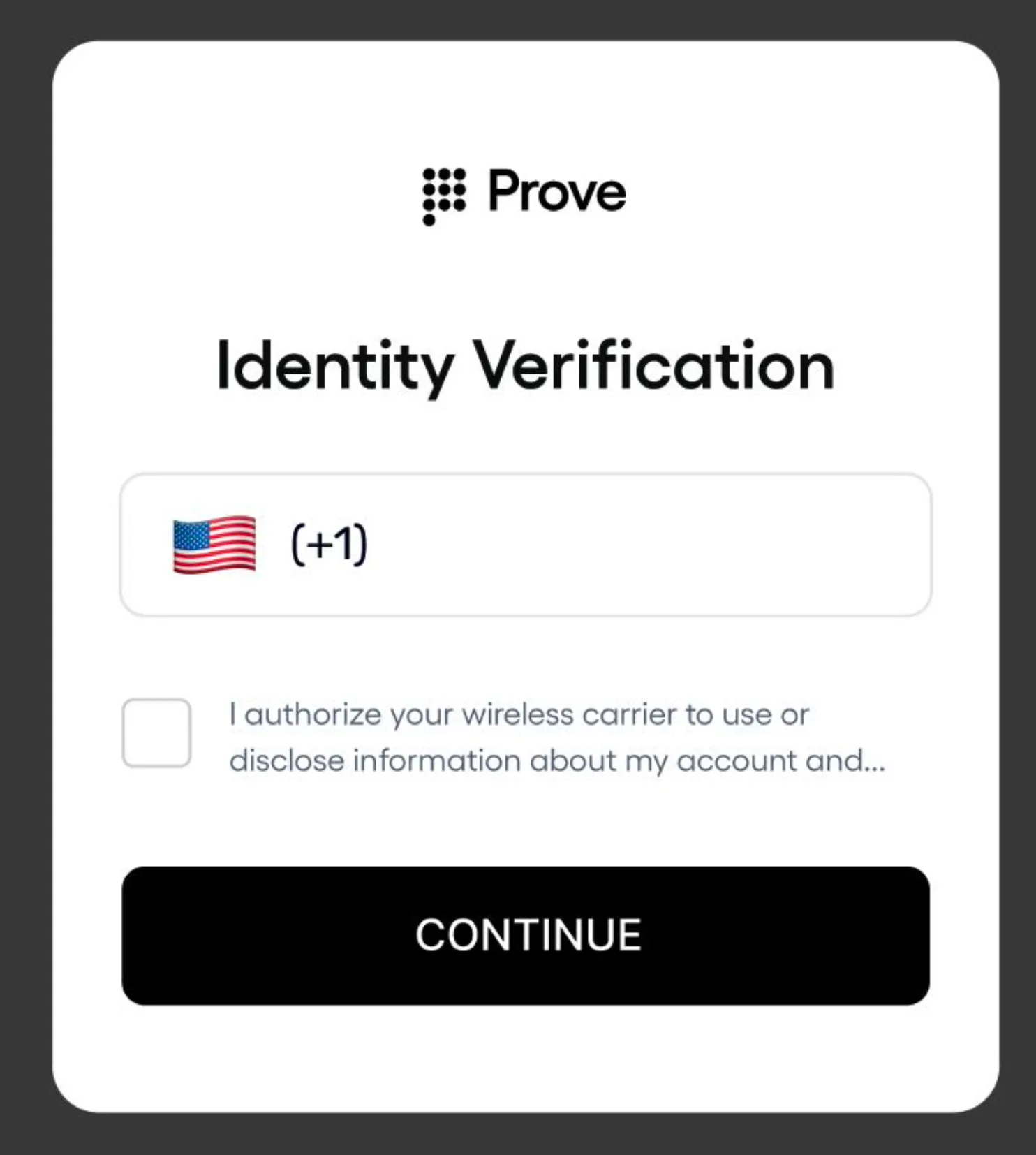
End user inputs their phone number

End User Widget Flow - Unique Trust Check screen 3
3

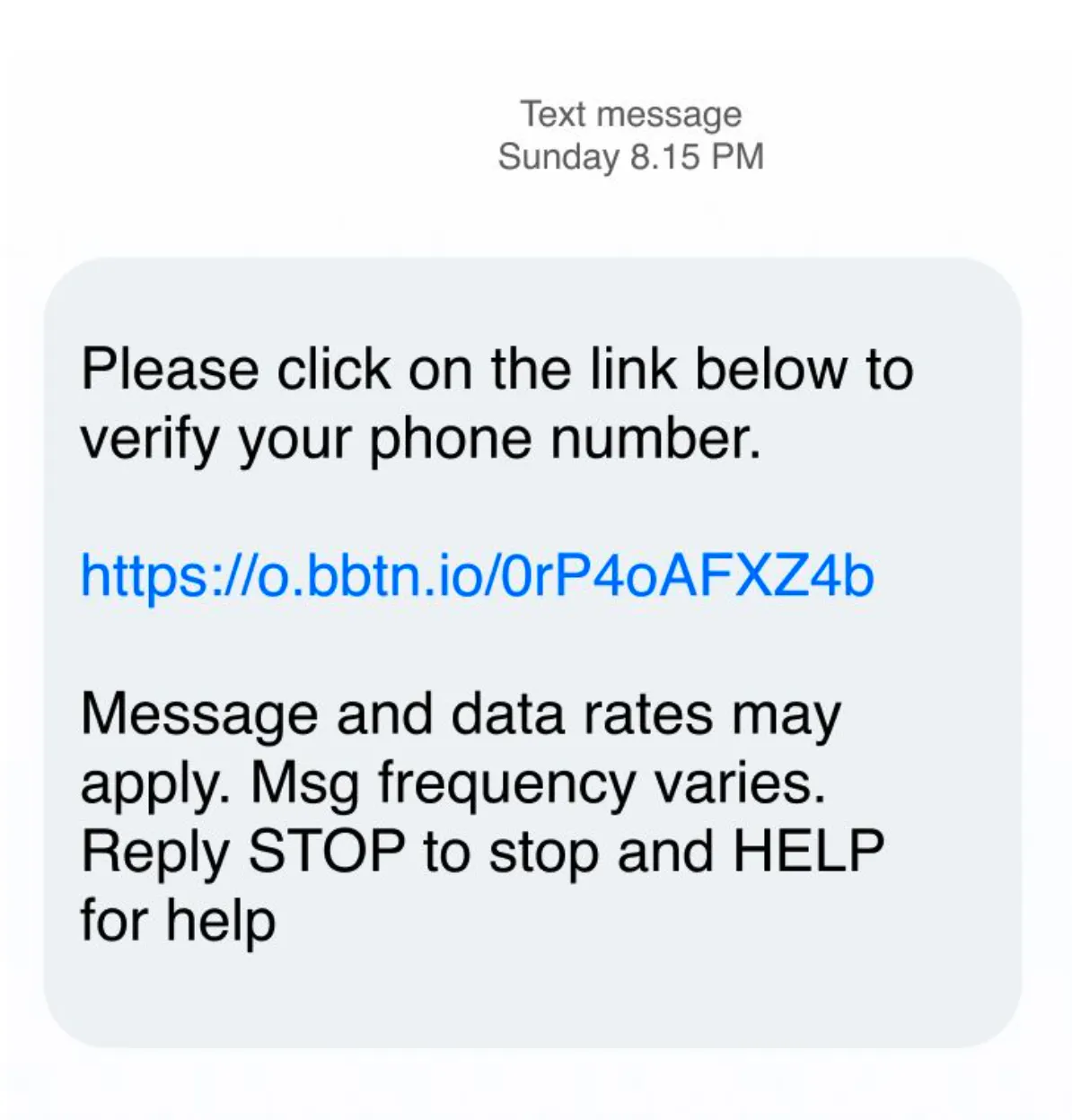
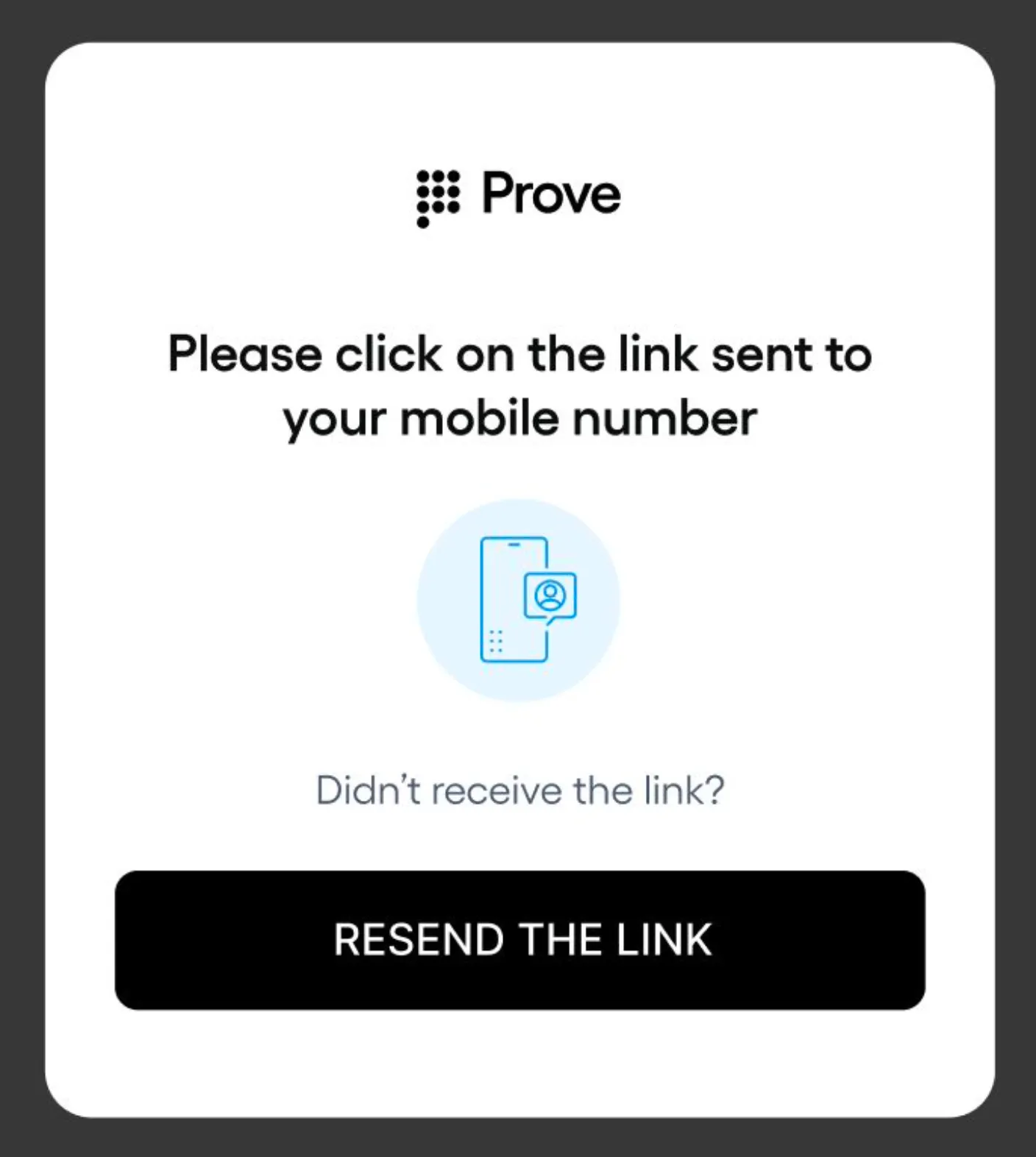
End user is sent an Instant Link which they click to authenticate

End User Widget Flow - Unique Trust Check screen 4
4

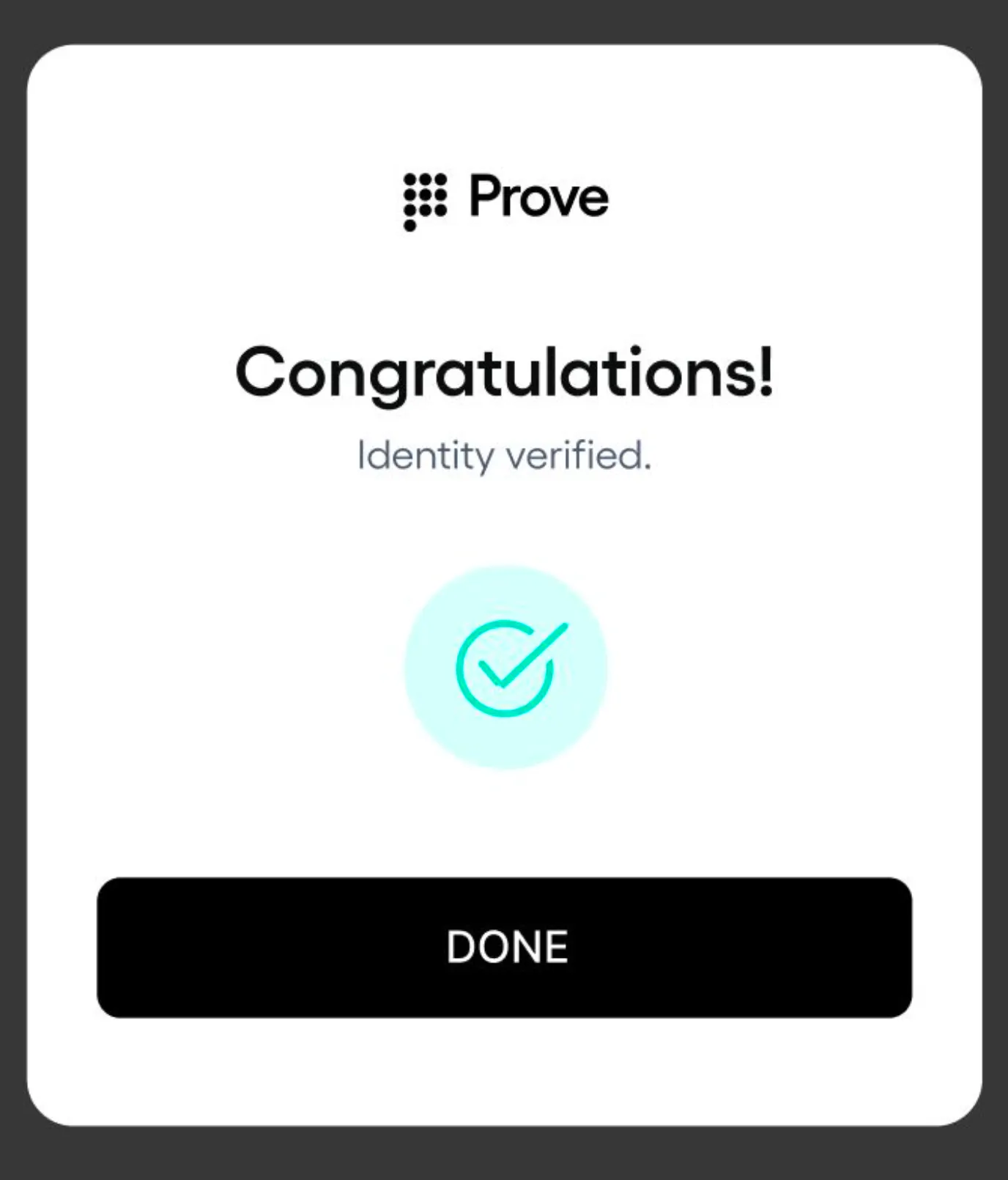
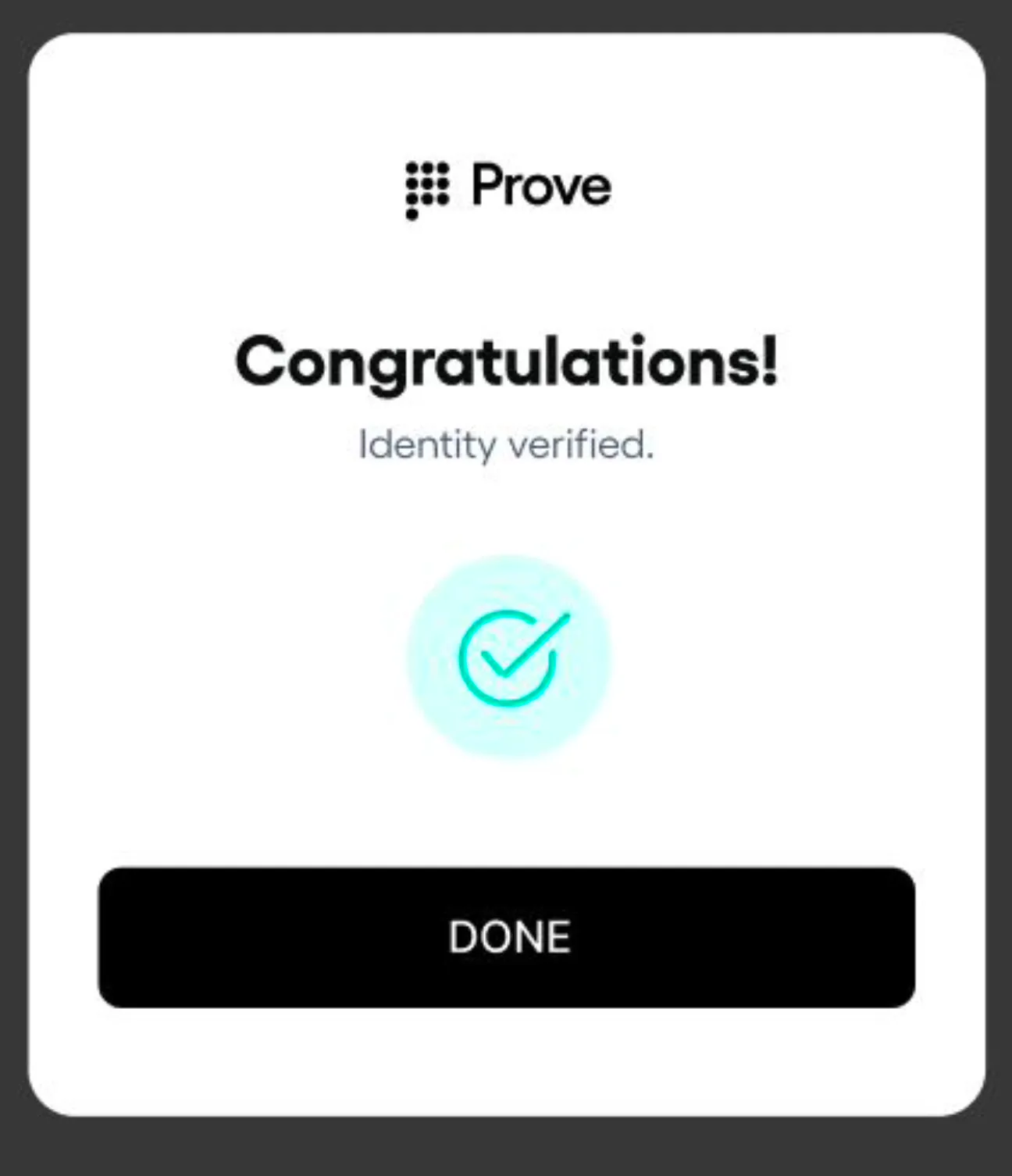
Done. End user has verified they are a unique and trustworthy user and they proceed through the merchant’s UX

Download The Full CX Flow

Prev
Next

S4 – End User View - Pre-Fill

End users of client websites and applications verify their identity through a Prove-hosted widget embedded within the client’s onboarding flow.
Web & Mobile App

Status: Alpha
Solution & Use Case FAQ
End User Widget Flow - Pre-Fill screen 1
1

End user clicks “verify” to initiate the flow

End User Widget Flow - Pre-Fill screen 2
2

End user inputs their phone number and agreed to Prove Terms & Conditions

End User Widget Flow - Pre-Fill screen 3
3

End user is sent an Instant Link which they click to authenticate

End User Widget Flow - Pre-Fill screen 4
4

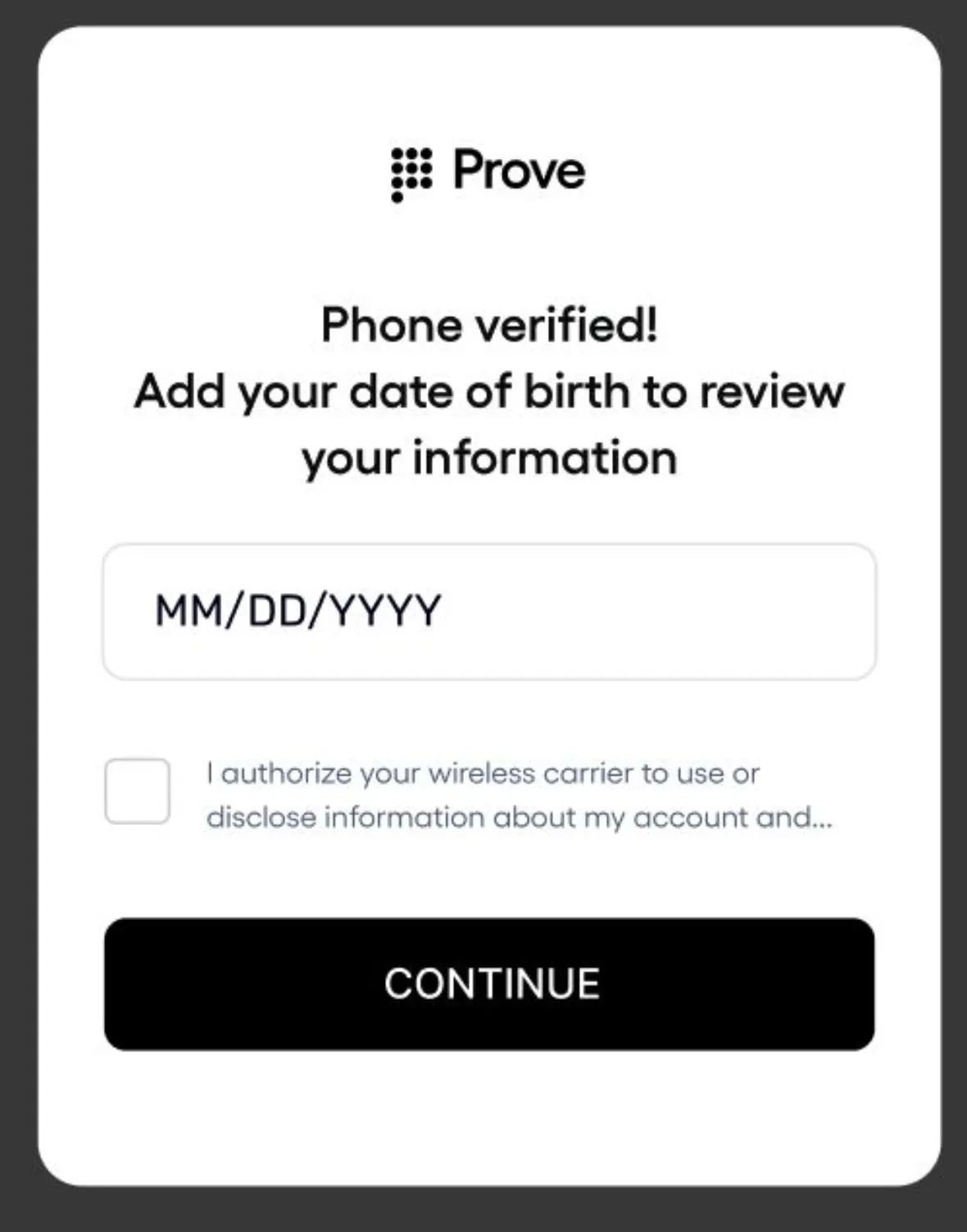
End user inputs their DOB and clicks ‘continue’

End User Widget Flow - Pre-Fill screen 5
5

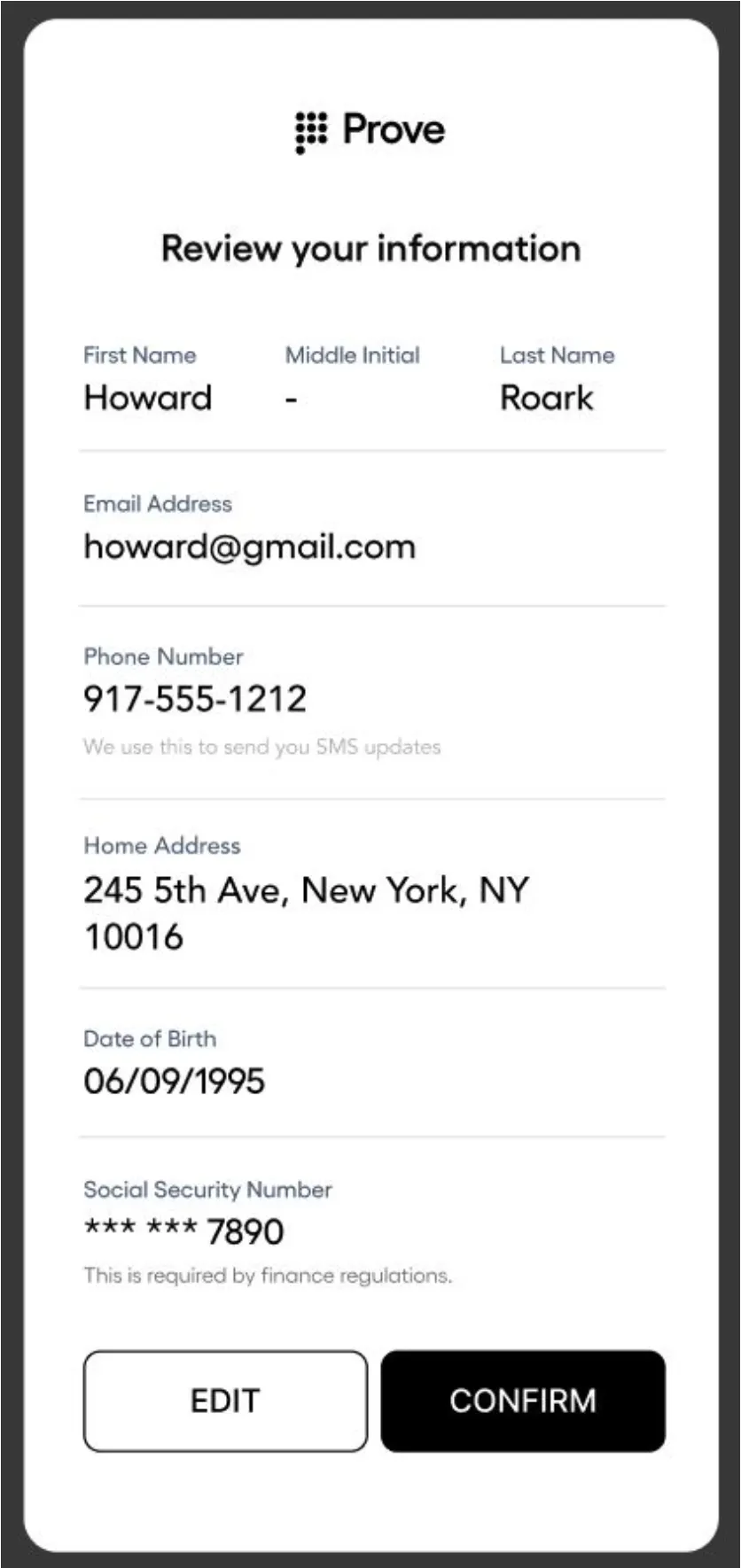
End user reviews the application and clicks ‘confirm’

End User Widget Flow - Pre-Fill screen 6
6

Done. End user has verified their identity and they can proceed through the merchant’s approved user flow

Download The Full CX Flow

Prev
Next

Preliminary Sample Prove / Client ROI Model
(TBD - Solution in Beta)

View ROI Model


Prove Self-Serve (L2) Solutions

Stay tuned! ROI Model coming soon!

Prove Consumer Marketing Rate Card (TBD - Solution in Beta)


Prove Self-Serve (L2) Solutions

Stay tuned! Rate Card coming soon!

Prove Consumer Marketing Documents
(TBD - Solution in Beta)

No items found.


Prove Self-Serve (L2) Solutions

Stay tuned! Documents coming soon!